Generic Gameplay Tag Events
Nodes available in the Flow plugin support finding actors and communicating with them by Gameplay Tags.
- This can have many advantages over using soft references to actor instances, i.e. changing actor instance name won’t break reference.
- This also allows communicating with actors spawned in runtime, i.e. all characters.
- You can call multiple actors identified by the same Gameplay Tag, which may be useful in many cases.
Obviously, you can use soft references to actors in your project-specific Flow nodes. Although the Flow plugin comes with a mechanism to call events in a generic way, without the need to know the actor’s class and functions.
Adding Flow Component to Actor
- Add
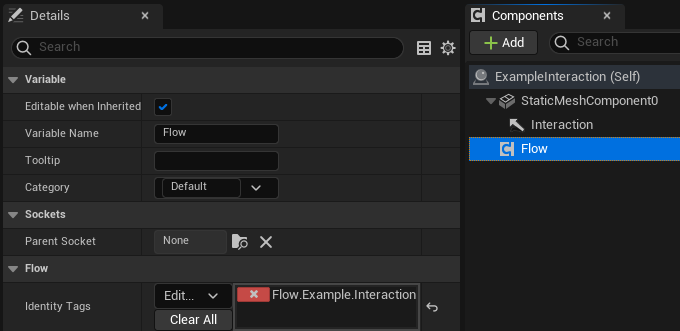
Flow Componentto the actor. - Assign a unique gameplay tag on the
Identity Tagslist.
Calling Actor events from the Flow Graph
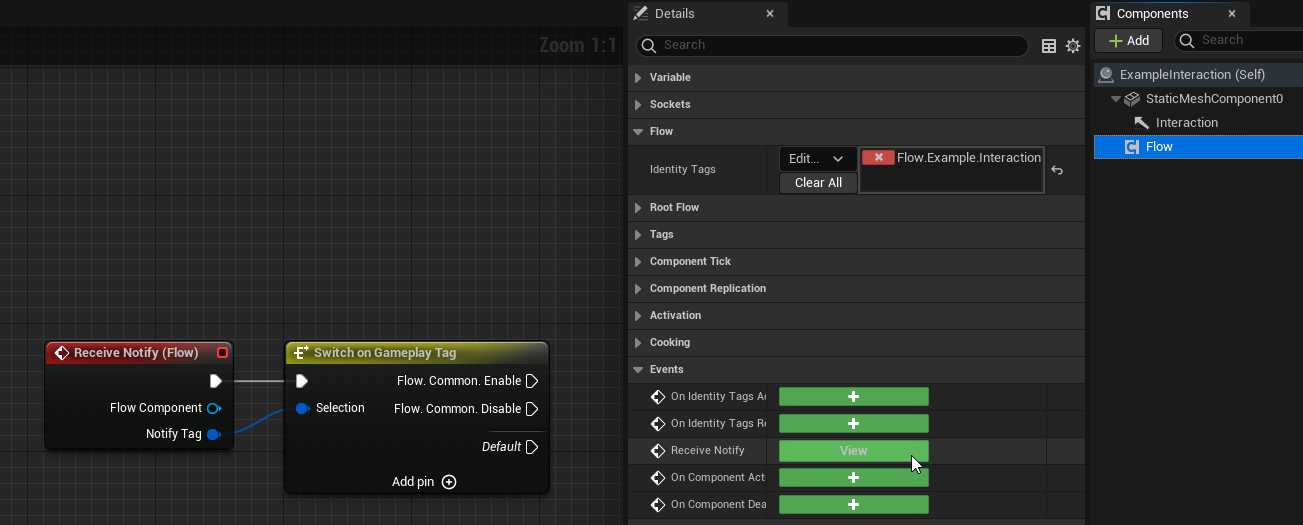
- Add the
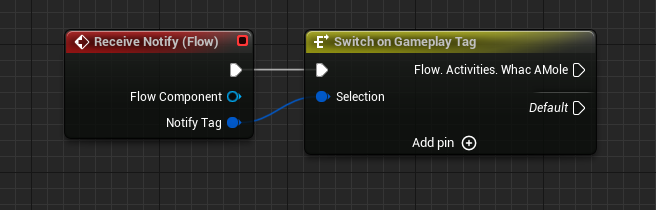
Receive Notifyevent from the Flow Component.
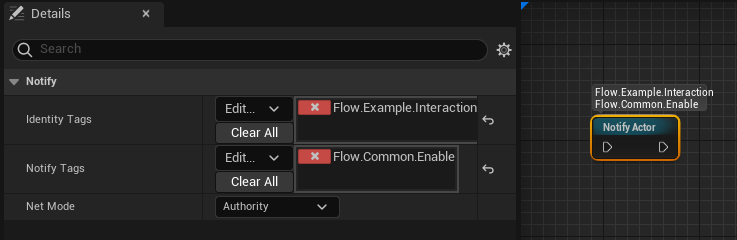
- Place the
Notify Actornode in your Flow Graph.Identity Tagsshould include the Identity Tag assigned in the Flow Component.Match TypeandExact Matchdecide how these tags are compared with Identity Tags of components.Notify Tagsare sent through theReceive Notifyevent to your actor, one event per tag. It allows you to call different events in the same actor. Without any Notify Tag, nothing is sent.Net Modedecides where the notify is sent, i.e. only on the server.
Calling Flow Graph event from the Actor
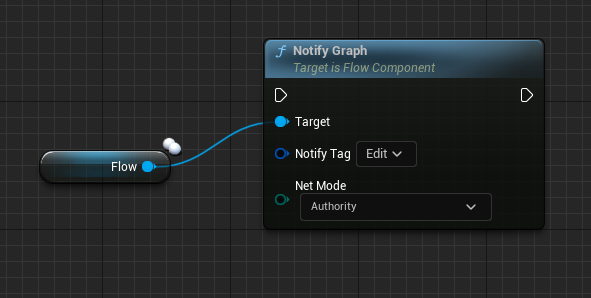
- Call
Notify Graphfrom the Flow Component. It requires a valid Notify Tag, otherwise nothing is sent.Bulk Notify Graphsends multiple tags at once.
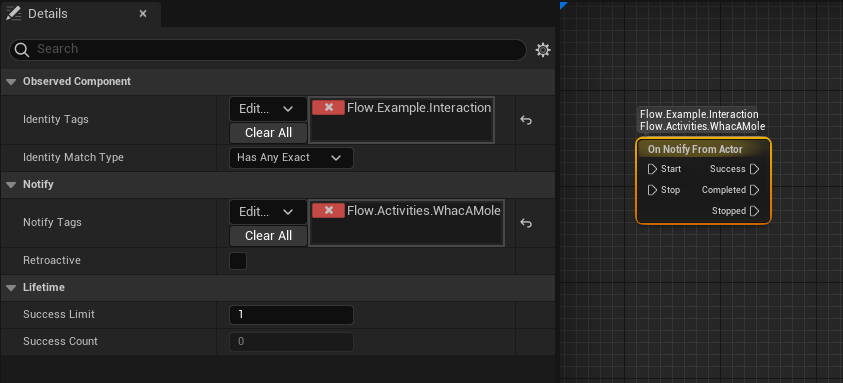
- Place the
On Notify From Actornode in your Flow Graph.Identity Tagsshould include the Identity Tag assigned in the Flow Component.Notify Tagsare optional. If added, the tag sent by Notify Graph needs to match one of them. Otherwise, theSuccessoutput won’t be triggered. DisableExact Matchto accept child tags too.- If
Notify Tagsare empty, the node won’t check what tag has been sent from the actor. TheSuccessoutput will always be triggered. - Enable
Retroactiveto also react to a notify sent just before the node started observing. It’s useful in multiplayer, where a client-side node may start after the server already sent the notify. Success Limitdecides after how many notifies the node completes. Set it to zero to receive notifies until the node is stopped.
Calling events between Actors
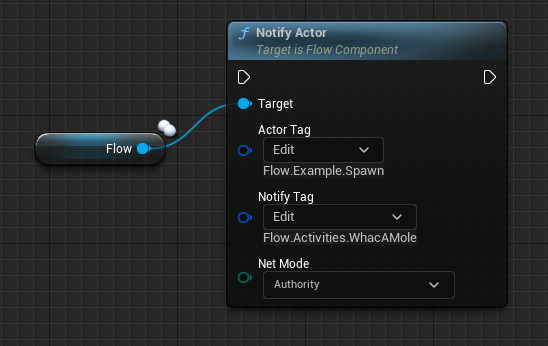
- Source Actor: call
Notify Actorfrom the Flow Component.Actor Tagis the Identity Tag of target actors. All actors with this tag receive the notify.Notify Tagis required. It allows you to call different events in the target actor.
- Target Actor: add the
Receive Notifyevent from the Flow Component.
Calling Flow Graph events from Sequencer
- Add the
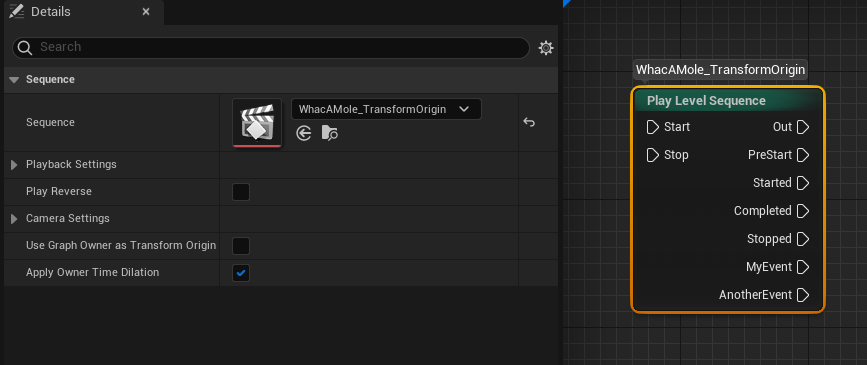
Flow Eventstrack to the Level Sequence.- Simply place a key on the section and give it a name.
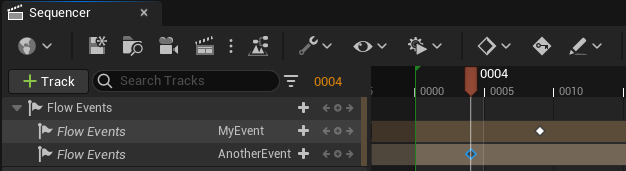
- Include this Level Sequence on any
Play Level Sequencenode.- Either use the
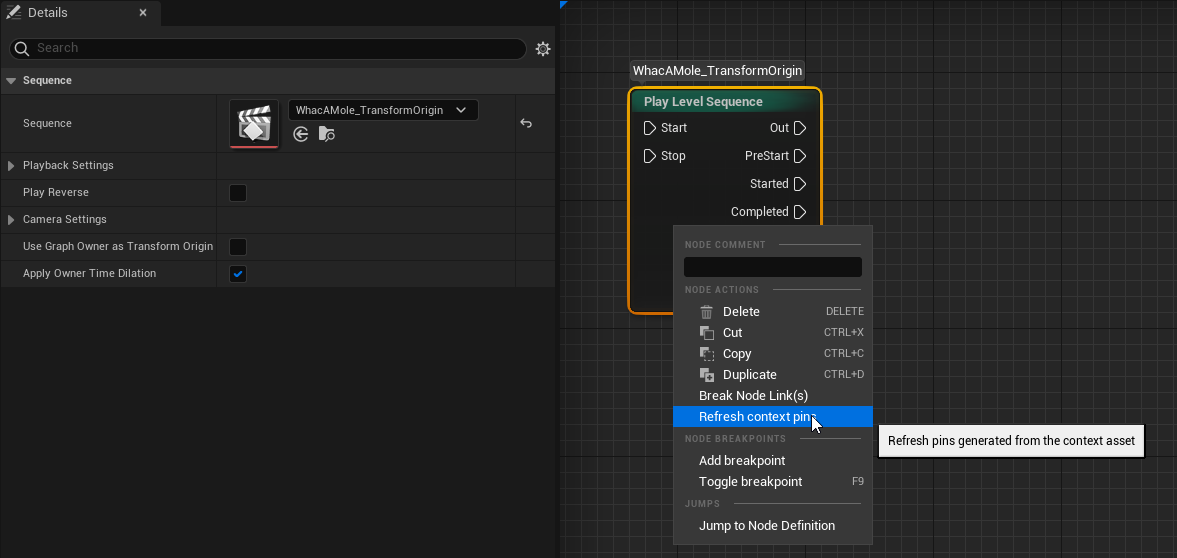
Refreshbutton on the Flow Asset editor toolbar or theReconstruct nodeoption in the node’s context menu. You need to use it after every change of event names, adding or removing events from the timeline.
- Either use the